Xenon Control for Mac
This page describes Xenon Control 0.3.0. Xenon Control is a Mac app that runs a Xenon server on your Mac. It answers one question, "can I test now?", and offers the next step: set the Mac up, start the server, then copy the address your tests connect to or open the dashboard. Once the server is up, the dashboard is the place for phones, sessions, people and everything else you do while the lab runs.
You don't need to know Appium's options, commands or folders to use it. Everything the app knows about them is still there for the engineer who sets the Mac up, behind one switch: Show technical details.
What you need
A Mac with Apple silicon. The releases are built for it.
Install these, in this order:
- Node.js: 20.19 or newer in the 20 line, 22.12 or newer in the 22 line, or 24 or newer. The simple choice is the current LTS version: download it from nodejs.org, or run
brew install nodeif you use Homebrew. - Appium 3, version 3.1.1 or newer. In Terminal, run
npm i -g appium. A pre-release, such as 3.2.0-beta.1, doesn't count as 3.1.1 or newer. - Android Studio for Android phones and emulators: it brings the Android tools. Xcode, from the App Store, for iPhones and simulators. You need only the one for the phones you test on.
- Xenon Control itself: see Download and install. Open it and press Set up this Mac. It installs the rest: Xenon, Android support, iOS support and, when you test on iPhones, iPhone support.
Setup checks each of these and says what is missing, with a How to install link to this list. Installation and requirements gives the exact versions, and iPhones and go-ios explains iPhone support.
An app opened from Finder doesn't get the settings your Terminal uses, such as your PATH. So Xenon Control reads them the way Terminal does, to find Node.js, Appium and the Android tools, and also looks in the usual places for Homebrew, nvm, Volta and asdf, and in ~/Library/Android/sdk.
Download and install
- Download the
.dmgfrom the latest release. The release also has a.zipof the app. - Open it and drag Xenon Control to Applications.
The first launch
The release builds aren't notarized by Apple. Anything downloaded through a browser, AirDrop or Slack carries a quarantine flag, and macOS then refuses to open an app Apple hasn't seen: it says "Xenon Control is damaged and can't be opened" or "cannot be opened because the developer cannot be verified". The app isn't damaged. Once, after copying it to Applications, run:
xattr -cr "/Applications/Xenon Control.app"
open -a "Xenon Control"
After that it opens with a double-click like any other app.
The command removes the marker that tells macOS the app came from somewhere else, so macOS skips its signature and notarization checks for it. You are vouching for the app in Apple's place. Do it only for a build you downloaded from this project's releases page.
xattr -dr com.apple.quarantine "/Applications/Xenon Control.app" removes just the quarantine flag if you prefer to change less.
The window
The sidebar on the left has three parts:
- The profile, at the top. It shows the profile in use. Click it to switch profiles, make a new one or manage them. Most people have one profile: see Profiles.
- Four places: Home, Setup, Settings and Logs.
- Setup shows ! when something on this Mac needs attention.
- Logs shows a dot after the server stops unexpectedly. The dot goes once you open Logs.
- The server, at the bottom. A dot and a word say how it is: Stopped, Starting…, Running, Stopping… or Stopped unexpectedly. Under them is one button, Start or Stop. Click the word to go to Home. When Start can't run, the reason shows under the button.
The keyboard:
- ⌘1, ⌘2, ⌘3 and ⌘4 open Home, Setup, Settings and Logs.
- In the sidebar, Tab reaches the places and the arrow keys move between them. Enter or a click opens one. Moving through the sidebar with the keyboard never changes the place on screen.
The menus:
| Menu | Items |
|---|---|
| File | New Profile ⌘N, Import Profiles…, Export Profile…, Manage Profiles… |
| Server | Start Server or Stop Server ⌘⏎, Open Dashboard ⌘D, Copy Test Address ⇧⌘C. With technical details on, also Preview Launch… ⌘P and Export Config… |
| View | Home ⌘1, Setup ⌘2, Settings ⌘3, Logs ⌘4, Appearance (System, Light, Dark), Show Technical Details ⌥⌘T |
The icon in the menu bar has a status line, such as Running · port 4723, then Start Server or Stop Server, Open Dashboard, Copy Test Address, Show Xenon Control and Quit Xenon Control. Closing the window keeps the app, and the server, running in the menu bar.
Home
Home always says whether you can test now, and offers the one next step.
| What Home says | When | What you can do |
|---|---|---|
| Let’s get this Mac ready | Xenon, or the phone support the profile needs, isn't installed yet. A checklist shows what this Mac has. | Set up this Mac, which runs Setup and shows its steps on Home. |
| Setting up this Mac… | Setup is running. | Wait. Each step shows as it goes. |
| Checking this Mac… | The app is looking at what this Mac has. | Wait. |
| Can’t start yet | Something is in the way. The reason is one sentence. | One quick fix (see below), and Try again. "Something else? See Setup for every check." |
| Ready to start | Everything is in place. A line says which phones and who can use them, such as "Android phones · this Mac only". | Start. The footer says how the last run ended, such as "Last run: today 09:42 · stopped normally". |
| Starting… | The server is starting. "Usually under 10 seconds." | Stop. |
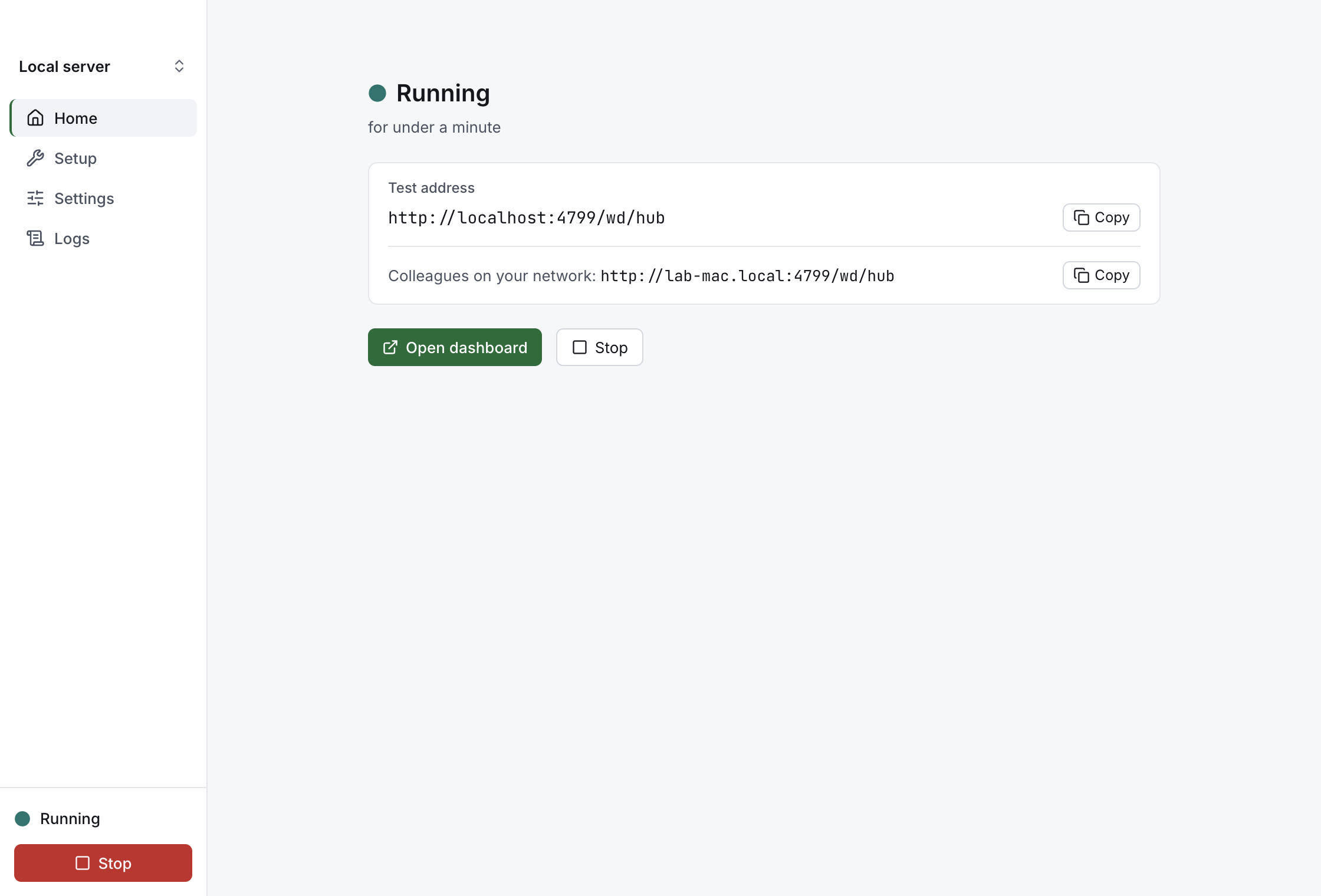
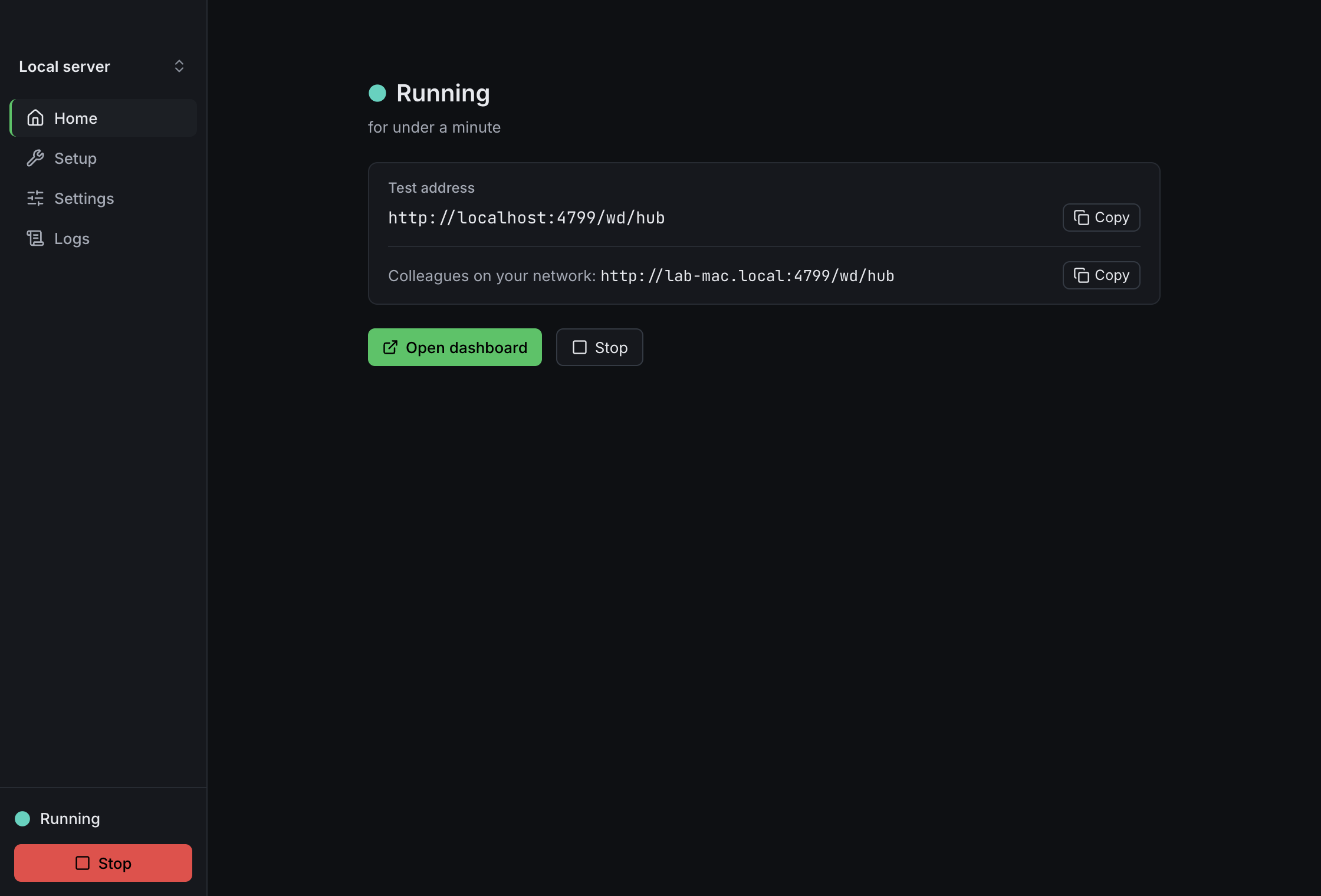
| Running | The server is up. The line under it says for how long, such as "for 12 min" or "for under a minute". | Copy the Test address or the colleagues' address, Open dashboard, or Stop. |
| Stopping — saving recordings and releasing phones… | The server is stopping. | Wait. See Stopping the server and quitting. |
| Xenon stopped unexpectedly | The server stopped without being asked. A sentence says why, such as "Port 4723 was taken by another app." or "Appium refused this profile’s settings.", and "Last message:" quotes the last problem the server printed. | Start again, or See what happened, which opens Logs at that line. |
| “Local server” is running | Another profile's server is running. Only one profile runs at a time. | Switch to it, or stop it to start this one. |
Quick fixes
When Home says Can’t start yet, it offers the one fix that fits:
| The problem | The button | What it does |
|---|---|---|
| Another app uses the port | Use port 4724 (the next free port) | Saves that port in the profile. |
| Xenon isn't installed for this profile | Set up this Mac | Runs Setup. |
| A setting can't be used | Fix it | Opens Settings at that setting. |
| Node.js or Appium is missing or too old | How to install | Opens What you need. |
| Anything else | See Setup | Opens Setup, which lists every check. |
The addresses
While the server runs, Home shows two addresses:
- Test address: the one your tests on this Mac connect to. It is
http://localhost:with the port and the base path, sohttp://localhost:4723/wd/hubfor a new profile. - Colleagues on your network: the one other computers on your network use. It has this Mac's network name in place of
localhost, such ashttp://lab-mac.local:4723/wd/hub.
Each has a Copy button. Copy Test Address (⇧⌘C) in the Server menu, and in the menu bar icon's menu, copies the test address too. Open dashboard opens the dashboard in your browser. Sign in as the Quick start describes.
Setup
Setup lists everything this Mac needs to run tests, and installs what it can.
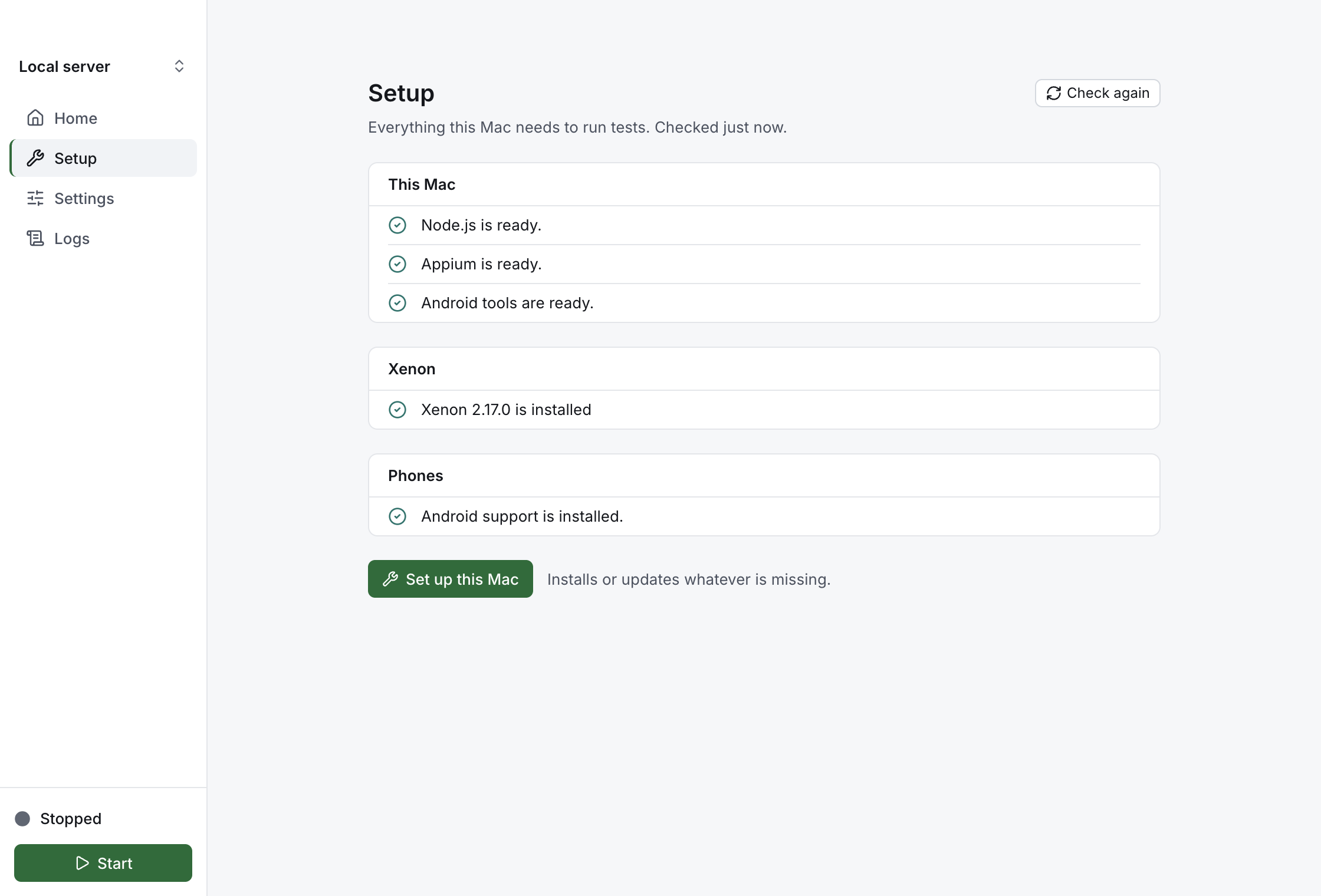
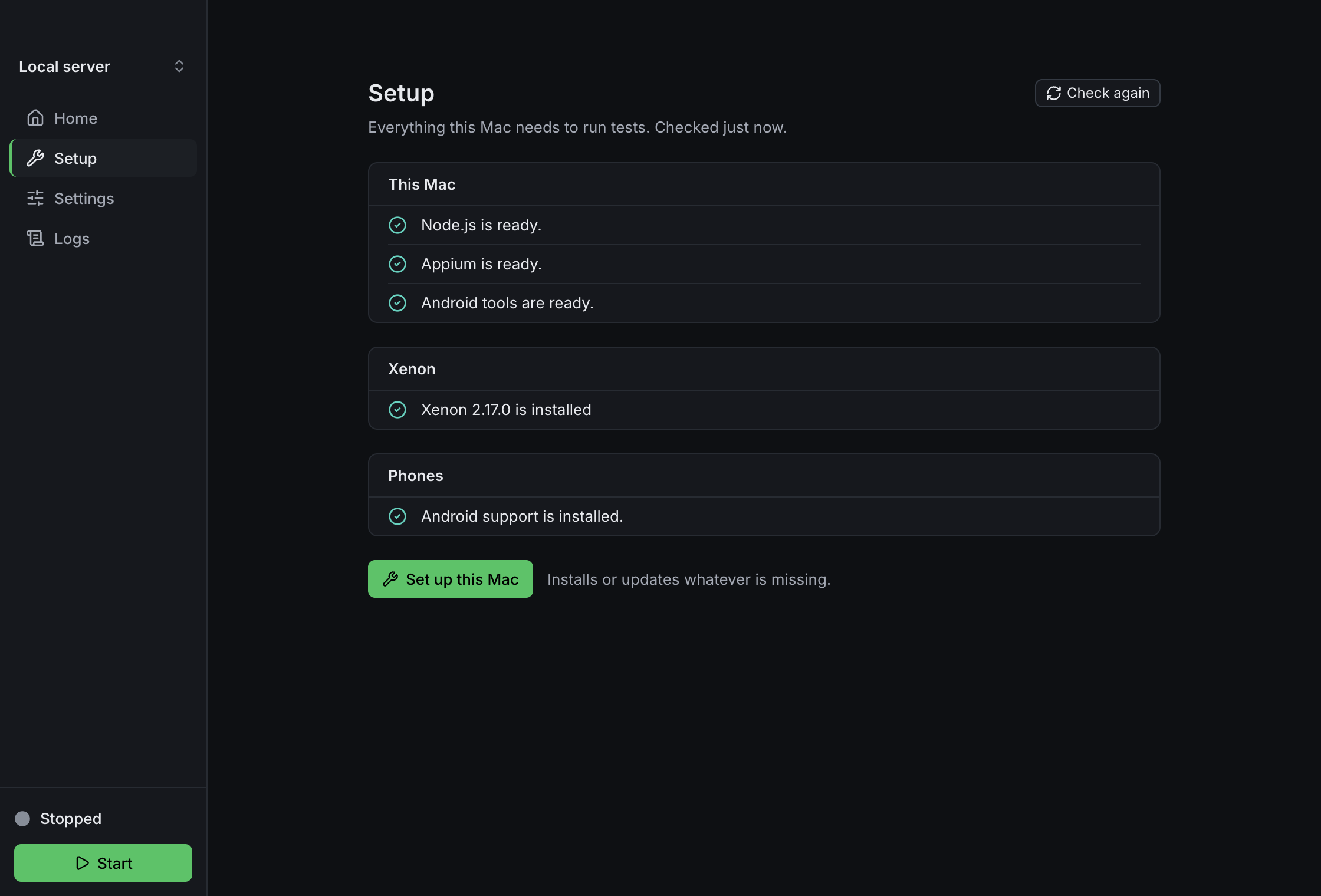
The checks come in three groups, and each shows only what the profile's phones need:
- This Mac: Node.js, Appium, the Android tools and Xcode.
- Xenon: whether Xenon is installed, and which version, such as "Xenon 2.17.0 is installed".
- Phones: Android support, iOS support and iPhone support.
Each row is an icon and one sentence, such as "Appium is ready." or "Appium isn’t installed on this Mac. Xenon needs Appium 3.1.1 or newer." A row the app can't fix itself, such as Node.js, Appium, Xcode or the Android tools, has a How to install link. Check again looks at the Mac again, and the line under the title says when it last looked, such as "Checked 2 minutes ago."
Set up this Mac installs or updates whatever is missing: Xenon, Android support and iOS support, and iPhone support when the profile uses iPhones. Its steps show under it as it runs, and a message at the end says whether setup finished or which step didn't. It is off while the server runs, because it replaces files the server uses: "Stop the server to run Set up." Run it again after you update Xenon. When iPhone support needs it, its row says "iPhone support needs updating — Xenon was updated."
When Start is off
Start doesn't run while something is in the way. The reason shows under the button, in its tooltip and on Home. It is one of these:
- A setting can't be used, such as "Fix 1 setting first: Port".
- The Mac isn't ready, such as "Port 4723 is already in use by another app. Choose another port or close that app." or "Run Set up first. Xenon isn't installed in the Appium folder this profile uses."
- The app is busy: "Checking…" while it looks at the Mac, or "Wait for Set up to finish." while Setup runs.
⌘⏎, Start Server in a menu and Start server on an empty Logs don't start the server then either. For a setting that can't be used, they open Settings at that setting. Otherwise Home, if it is open, says what is in the way; from any other place they open Setup. While Setup runs, they do nothing.
The app checks again by itself when you switch profile, change the port or the Appium folder, come back to the window, or press Check again or Try again, and when Setup or the server stops. So Start comes back once you've fixed the cause. It also checks right before every start.
If a start fails anyway, a message says why. It stays until you close it, and under Start until your next start. If the server starts but then stops by itself, the sidebar says Stopped unexpectedly, Home says why, and Logs has what Appium printed. Importing a profile file that holds no profiles, or one the app can't read, says so too.
Settings
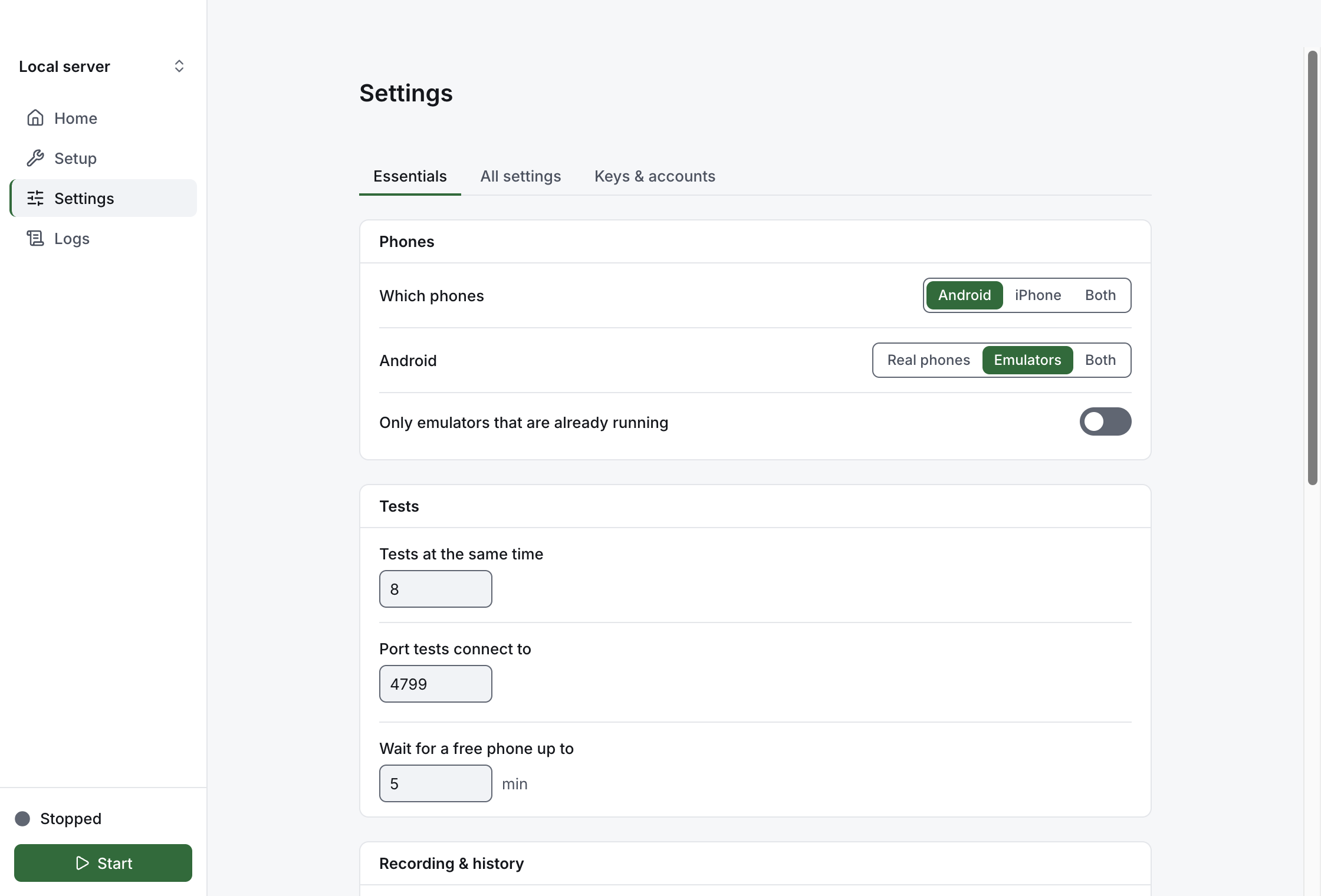
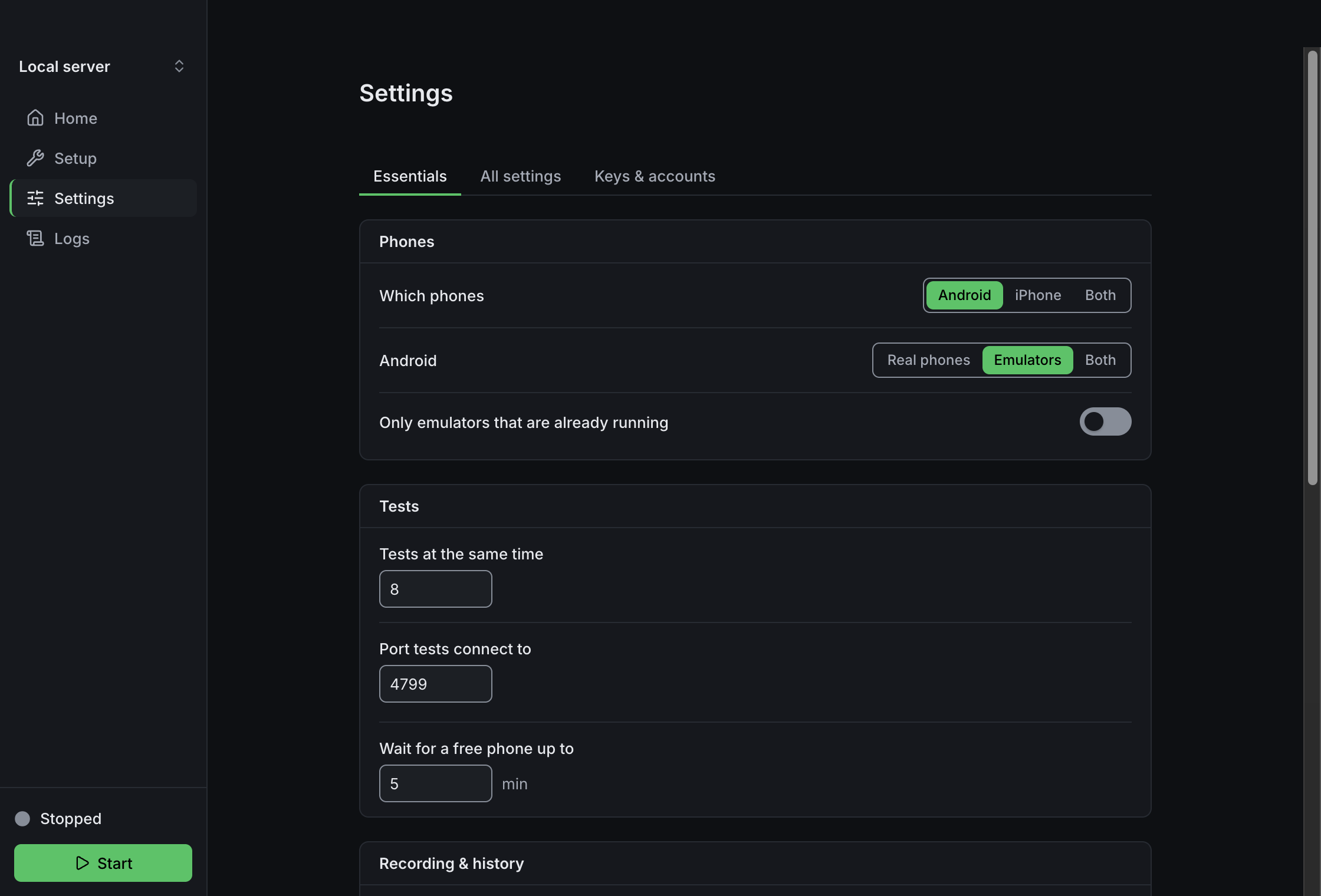
Settings has three tabs: Essentials, All settings and Keys & accounts. A change is saved as you make it. While the server runs, Settings says "The server is running. Restart it to use changes."
Essentials
The settings most people change, in plain words. Some rows show only when they apply, such as the iPhone rows when you test on iPhones.
| Group | Settings |
|---|---|
| Phones | Which phones: Android, iPhone or Both. Android: Real phones, Emulators or Both. iPhone: Real iPhones, Simulators or Both. Only emulators that are already running and Only simulators that are already running. |
| Tests | Tests at the same time, Port tests connect to, and Wait for a free phone up to, in minutes. |
| Recording & history | Keep a full record of each test: steps, screenshots and logs, in the dashboard. Keep history for, in days. |
| Sharing & sign-in | Ask people to sign in. Share this Mac’s phones with a lab hub: turning it on shows Hub address, Access key and Token. Turning it off clears the hub address and keeps the key and the token. |
| AI help | Repair broken element lookups automatically. AI service: Gemini, OpenAI, Claude or Ollama. Then the key for that service, or the Ollama address. |
A key's box says "•••••••• saved" or "Paste a key". Saving a key here also turns it on for this profile (see Keys & accounts). Under some settings, "The dashboard can override this." means a value saved in the dashboard wins over this one.
The Show technical details switch is at the bottom of Essentials.
When a value can't be used, the problem shows under it in plain words, and Start stays off until it is fixed. The port is a number from 1 to 65535. A hub address is the hub's own address: an http or https address with no path and no user name or password in it, such as http://hub-mac:4723. Numbers must stay inside their allowed range.
All settings
Every Xenon option, each with a plain name and one line of help, in groups: Phones, Tests, Recording & history, Sharing & sign-in, AI help, Phone health, Network and Storage & logs. Search settings finds an option by its name or its help. The proxy and cloud phones are under Network.
The list follows the Xenon installed for the profile. A setting your installed Xenon doesn't know is left out of the launch, because Appium refuses to start with one. It stays in the profile and is used again once Xenon is updated. An option that a newer Xenon adds, which this app has no words for yet, appears under More with Xenon's own description.
A setting that is a secret, such as an AI key, has no box here. It says where to set it, with Open Keys & accounts.
Keys & accounts
Keys and passwords live here. They are kept in this Mac's Keychain, never in a file.
| Name | What it is for |
|---|---|
| Gemini key, OpenAI key, Claude key | Let AI repair broken element lookups. |
| Hub access key, Hub token | Let this Mac join a lab hub. Hub and nodes explains where to get them. |
| Email for password resets | Sends password-reset emails to people who sign in. |
| Cloud access key | Lets Xenon use phones from your cloud provider. |
| Proxy password | The password for the proxy this server uses. |
| Database file | Where Xenon keeps its data. Shown only with technical details on. |
Each shows Saved or Not set, with Save and Clear. The Cloud access key and the Proxy password say Saved for this profile instead of Saved. Clear asks first.
There are two kinds:
- The Cloud access key and the Proxy password belong to one profile. Their heading says "for this profile". Each profile has its own, saved in the Keychain for that profile alone. Duplicating a profile gives the copy its own copy of them, and deleting a profile clears them.
- Every other key is one per Mac. A profile uses it when its Used by this profile switch is on, so two profiles can share one Gemini key. "Also used by …" names the other profiles that use it, because saving a new one changes it for them too.
Profile files and exports never contain any of these values. A Cloud access key or Proxy password that an earlier version kept in a profile moves into the Keychain, for that profile, when 0.3.0 first loads it.
If the saved proxy password has a colon (:) in it, Keys & accounts warns you. See Known limitations.
Logs
Logs shows what the server prints while it runs, each line with its time. Warnings and errors are coloured and have an icon.
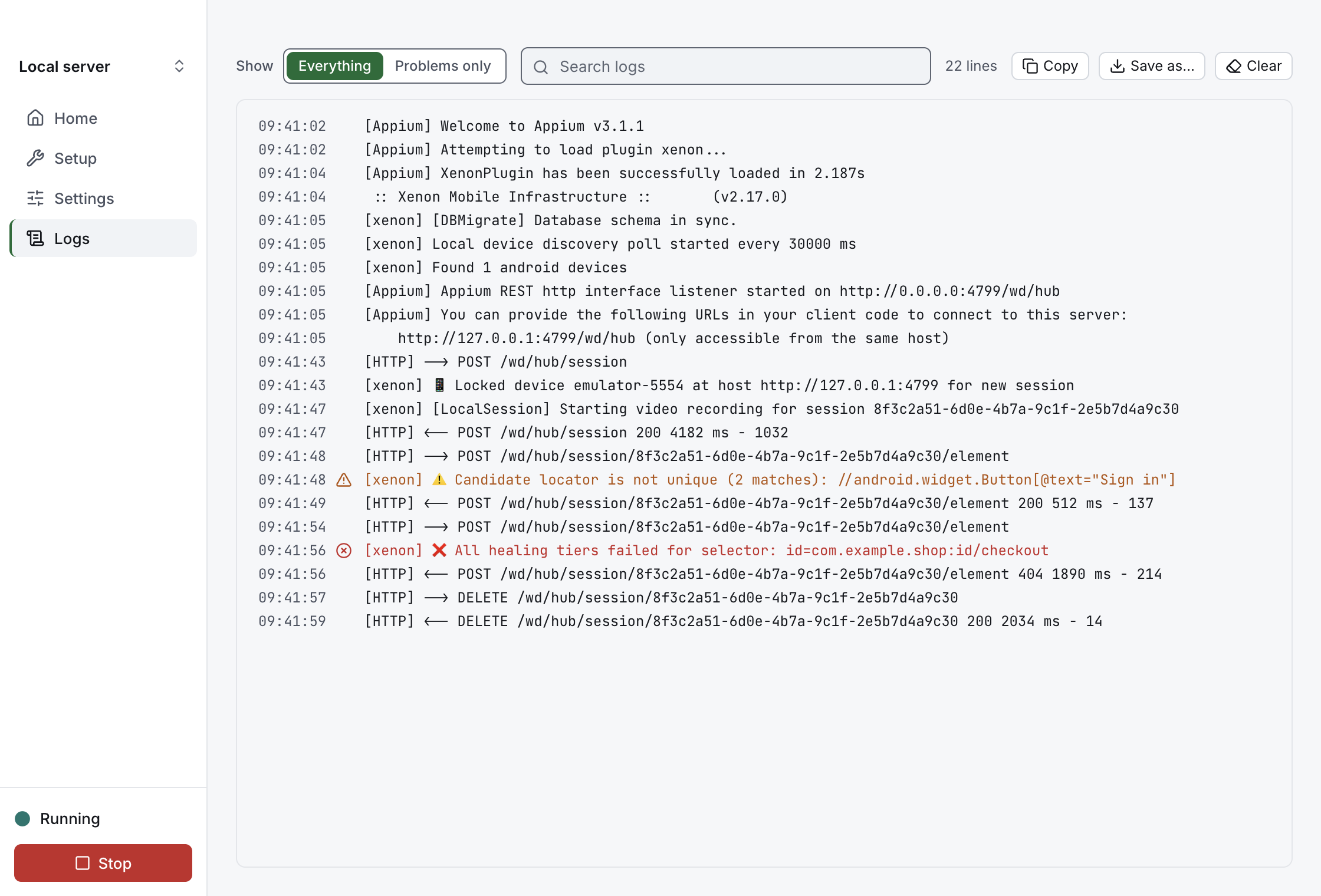
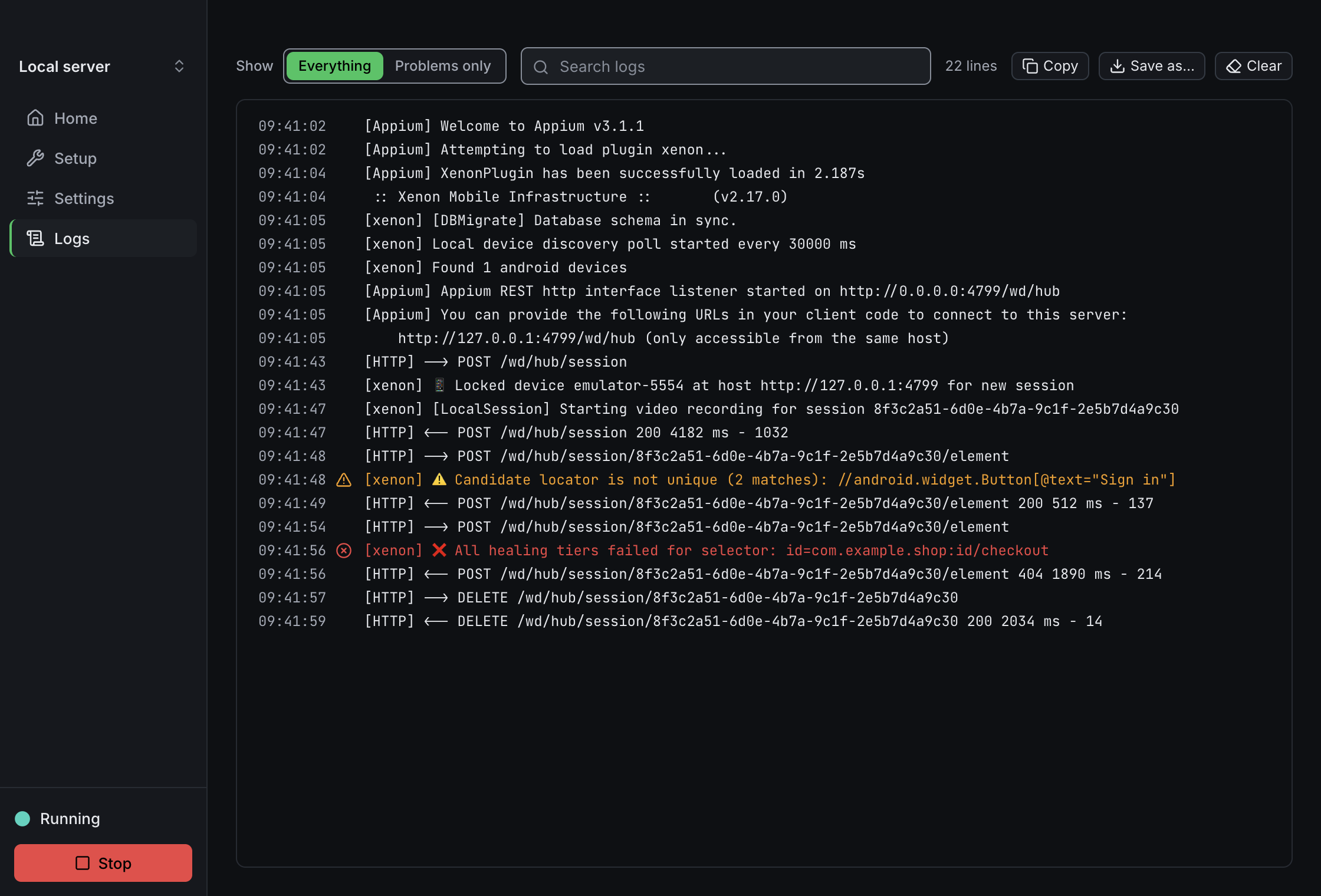
- Show: Everything or Problems only. Problems only shows the lines with error or warning words, the lines Xenon marks with ❌ or ⚠️, Appium's "No route found" and "No drivers have been installed" lines (an address without its base path, and a server with no drivers), and, after a crash, the line that says how the server ended.
- Search logs narrows the lines shown. The count beside it says how many lines are shown.
- Copy and Save as… take the lines shown, with their times. A saved file starts with a line that says what it is, such as "Xenon Control log · 8 October 2026 · Problems only · 3 of 1,204 lines".
- Clear empties Logs. It doesn't change what Home says about a crash.
- Open log folder, with technical details on, opens the folder where the app writes a log file for every launch.
Logs keeps the last 5,000 lines. While the list is at its end it follows new lines. Scroll up and it stays where you are.
When the server stops unexpectedly, Home quotes the last problem it printed. See what happened opens Logs on Problems only, at that line, and marks it for a moment. The quote, the Logs dot and the lines are still there if the window was closed when it happened.
Profiles
A profile is a named set of settings, such as "Local Android" or "Hub". Most people have one and rarely switch. The first time the app opens, it makes one called Local server: Android and iPhone, the dashboard on, 8 tests at the same time, port 4723 and base path /wd/hub.
- Switch profile: click the profile at the top of the sidebar. Each profile shows a line such as "Android and iPhone · port 4723", and the one in use has a check mark. New profile… and Manage profiles… are at the bottom.
- Manage profiles: Manage profiles…, or File → Manage Profiles…, opens the Profiles sheet. There you can Rename, Duplicate and Delete profiles ("Delete “QA Lab — iOS”? Its settings can’t be recovered."), and Import… and Export… them. Export saves the profile marked Current.
- Share a profile: an export is a JSON file a lab can share. It never holds a secret value. Afterwards a notice says how many were left out, such as "3 secret values were left out — enter them again after importing". Profile exports says exactly what is left out.
Only one profile's server runs at a time. If you switch while one runs, Home says which one is running and offers Switch to it.
Show technical details
One switch shows everything the app knows, for the engineer who sets the Mac up. It is at the bottom of Settings → Essentials, and in View → Show Technical Details (⌥⌘T). It is set for this Mac, not for each profile, and it starts off.
With it on:
- Settings shows each option's own name and Xenon's description under it, and All settings gains a Technical group.
- Setup shows versions, folders and the command that fixes a row, with Copy.
- Home shows what the check or the server reported, word for word.
- Logs shows the app's own lines, such as how it launched the server and its diagnostics, and Open log folder.
- Keys & accounts shows the Database file.
- The Server menu gains Preview Launch… (⌘P) and Export Config….
Where things are now
Earlier versions had a header and tabs with these. In 0.3.0 they are here. Everything in the Technical group (the base path, the Appium folder, the keep-alive timeout, the environment variables, Preview launch and Export config) shows only with Show technical details on, and so do the two Server menu items and Open log folder. With it off, the Technical group appears only when one of its settings has a problem, and shows just that setting, so Fix it can take you there.
| What | Where |
|---|---|
| Port | Settings → Essentials → Tests → Port tests connect to. No technical details needed. |
| Base path, Appium folder, keep-alive timeout | Settings → All settings → Technical, with technical details on. |
| Environment variables | Settings → All settings → Technical → Environment variables, with technical details on. |
| Launch preview | Preview launch in the Technical group, or Server → Preview Launch… (⌘P), with technical details on. |
| Export config | Export config in the Technical group, or Server → Export Config…, with technical details on. |
| Log folder | Logs → Open log folder, with technical details on. |
| Secrets | Settings → Keys & accounts. |
| Toolchain checks | Setup. |
Preview launch shows what Start would run: the appium command, the Appium folder, the names of the environment variables it sets (never their values) and the config file it writes. You can copy the config, or save it with Save config…. It is off while the server runs.
Where Appium keeps its files
Xenon and the phone support live in an Appium folder. Type a path in Appium folder in the Technical group to choose one (a leading ~ stands for your home folder), or leave it blank and the app picks the first of these that already has Xenon installed:
- The
APPIUM_HOMEyour login shell sets, if it sets one. - The app's own folder,
~/Library/Application Support/xenon-control/appium-home. ~/.appium.
When none of them has Xenon yet, the app uses its own folder, which is where Set up this Mac then installs it. Setup, the checks, Start and Open Appium folder all use that same folder, so setup installs where the server then starts from. With technical details on, Setup's Xenon row names the folder and how it was found. Start stays off while Xenon isn't installed there.
How it launches Xenon
For each launch the app writes a complete Appium config file with Xenon's settings, and runs appium server --config with it. The keys on Keys & accounts don't go in the file. They reach the server as environment variables, the ones Environment variables describes:
- the AI keys, the hub key and token, the email for password resets and the database file, each one the profile uses;
- the Cloud access key as
CLOUD_KEY, and a Cloud user name from All settings asCLOUD_USERNAME; - a proxy with a password as
HTTPS_PROXYandHTTP_PROXY, built from the proxy settings and the password, in place of the config's proxy option. A proxy without a password stays in the config.
A server started this way is an ordinary Xenon server, so everything in the rest of these docs applies to it. The app doesn't set Machine-readable logs for you. So on Xenon 2.13.2 or newer, XENON_JSON_LOGGING=true under Environment variables turns JSON logging on, unless the profile sets Machine-readable logs itself, which wins.
Without a Database file, the server uses its default SQLite database. To make this Mac part of a lab, turn on Share this Mac’s phones with a lab hub in Essentials, and fill in the hub's address, access key and token.
Keeping secrets out of the log
Appium logs the body of every request it receives, which includes the token of a test session and the password of a sign-in. Every config the app writes carries Xenon's two log-filters rules, so Appium shows the value of a token, sessionToken, leaseToken, password, oldPassword, newPassword or apiKey as **REDACTED**. That holds for Logs and for the log file of each launch. You can't edit or turn off these rules in the app, and the launch preview shows them in the config. They aren't a complete cover: Keep secrets out of Appium's log lists what they miss, such as webhook addresses and text typed on a phone, so still limit who can read the log.
Profile exports
An export never holds a secret value: the keys on Keys & accounts aren't in a profile at all. It names the keys the profile uses, but not their contents. It also leaves out any environment variable whose name looks like a secret. That is a name that is one of the words KEY, APIKEY, TOKEN, SECRET, PASSWORD, PASSWD, PWD or PASS, or ends in one of them after an underscore (TOKEN, API_KEY, DB_PASS), or is PGPASSWORD, or is an OTEL_EXPORTER_OTLP_*HEADERS variable, or is the name of one of the keys, such as DATABASE_URL. Capitals don't matter. The names it left out are listed under strippedEnv in the file, so whoever imports it knows what to enter again, and with technical details on, the notice after an export names them too. A user:password@ in an address, such as a proxy address or the hub, is cut out. The rest of the profile's settings and environment variables go in as they are, so keep secrets under other names out of them. An environment variable named like a key gets a warning that it belongs in Keys & accounts.
Appearance
Xenon Control follows your Mac's light or dark appearance. To choose, use View → Appearance: System (the default), Light or Dark. The choice is for this Mac. With System, the window changes as soon as macOS does, and the menus and the title bar match.
Stopping the server and quitting
Xenon finishes a shutdown by saving recordings, releasing the phones it holds and stopping the helpers it started, which takes up to about 15 seconds. Stop gives it time for that: it asks Xenon to stop and waits up to 30 seconds. If Xenon is still running then, the app asks again more firmly, and 5 seconds after that it ends the process. The log says when the app has to step up. While this runs, Home says "Stopping — saving recordings and releasing phones…" and the sidebar says Stopping…. Stop, and Stop Server in the Server menu and in the menu bar icon's menu, are off, so a second click can't start the countdown over.
Quitting the app (⌘Q) while the server runs does the same stop first, and quits when Xenon has stopped, which can take up to about 35 seconds. The window stays on screen during the wait so you can see what it's doing, and it reappears if you had closed it. Press ⌘Q a second time to skip the wait: the app asks Xenon to stop once, ends it after 2 seconds if it hasn't stopped, and quits within about 5 seconds. A forced quit cuts Xenon's shutdown short, so a recording still in progress may not be saved.
Known limitations
- What the proxy carries. With a Proxy password set, the app hands the proxy to Xenon as
HTTPS_PROXYandHTTP_PROXY. Then Xenon's webhooks and its download of the Chrome driver go through the proxy too, unless the proxy exceptions name their host: aNO_PROXYenvironment variable on the profile, under Environment variables. - Colons in proxy passwords. The current Xenon (2.17.0) cuts a proxy password at its first colon (:), so the proxy may refuse it. Keys & accounts warns you when the saved password has one. Use a password without a colon until Xenon is fixed.
What it leaves to the dashboard
Xenon Control only gets the Mac ready and starts the server. Managing phones, sessions, people, teams and settings while the lab runs stays in the dashboard at /xenon/, which Open dashboard opens.
For how the app is built and released, see its README in the repository.
Related
- Installation and requirements
- Configuration: every option All settings offers, by its own name.
- Upgrading: Set up this Mac updates an installed Xenon.